Importing from Mountain Project
Already log your outdoor climbs on Mountain Project? Bring your ticks into Big Sendies so your crag days sit next to your gym sessions in one logbook.
Step by Step
1
Find Your Profile Link
On mountainproject.com, open your profile and copy the link from the address bar (it looks like mountainproject.com/user/123456789/your-name). Your tick RSS feed link or just the number in the link works too. Your ticks need to be public for Big Sendies to download them.
2
Paste It in Settings
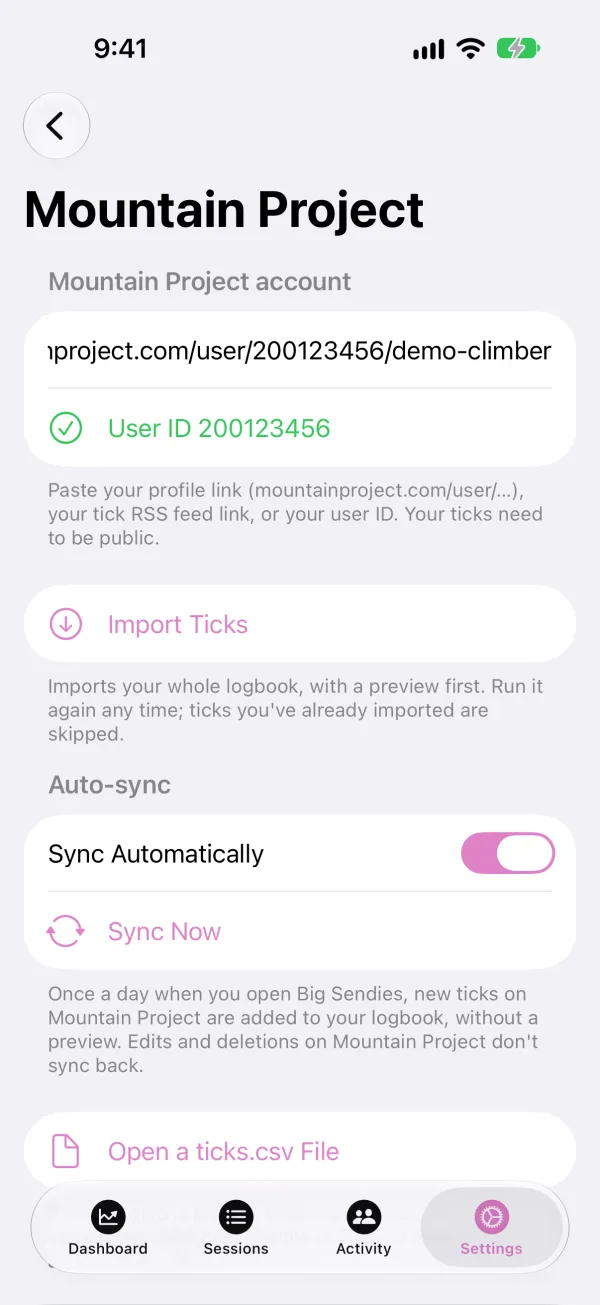
In the Settings tab, tap Mountain Project under Data and paste the link. A green check shows the user ID Big Sendies found. Tap Import Ticks.
3
Check Your Crags
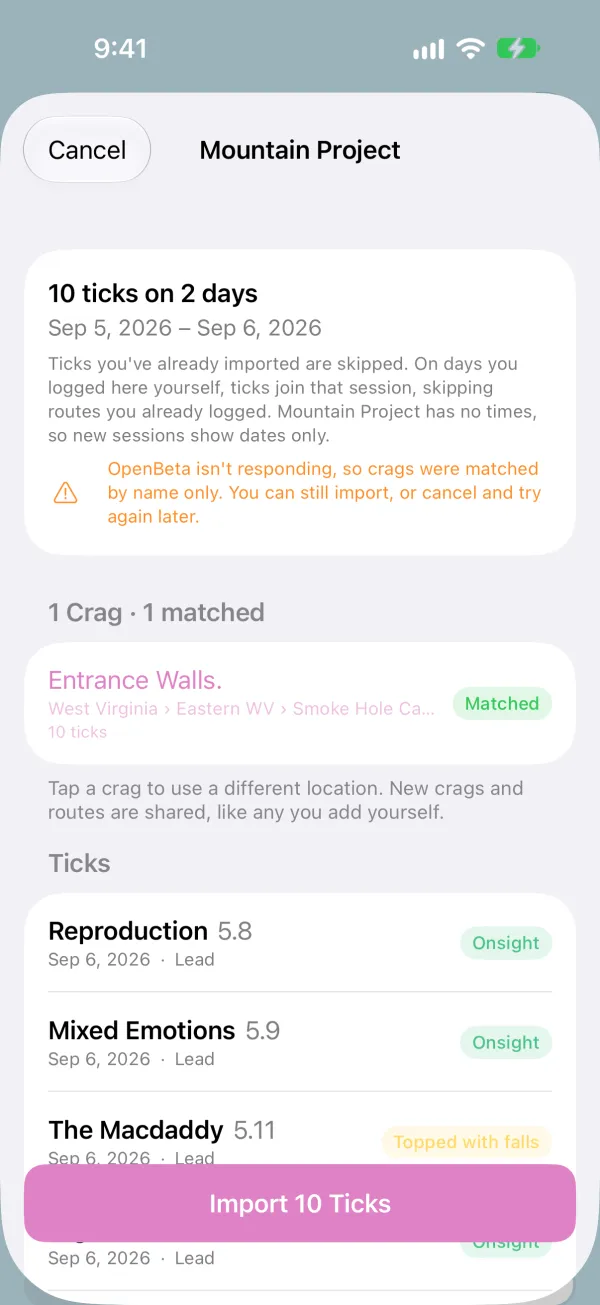
Big Sendies downloads your ticks and matches each crag to a location. Matched means it's already in Big Sendies, New from OpenBeta means it'll be added with OpenBeta's details, and New means it'll be added by name. Tap a crag to use a different location instead.
4
Review the Ticks and Import
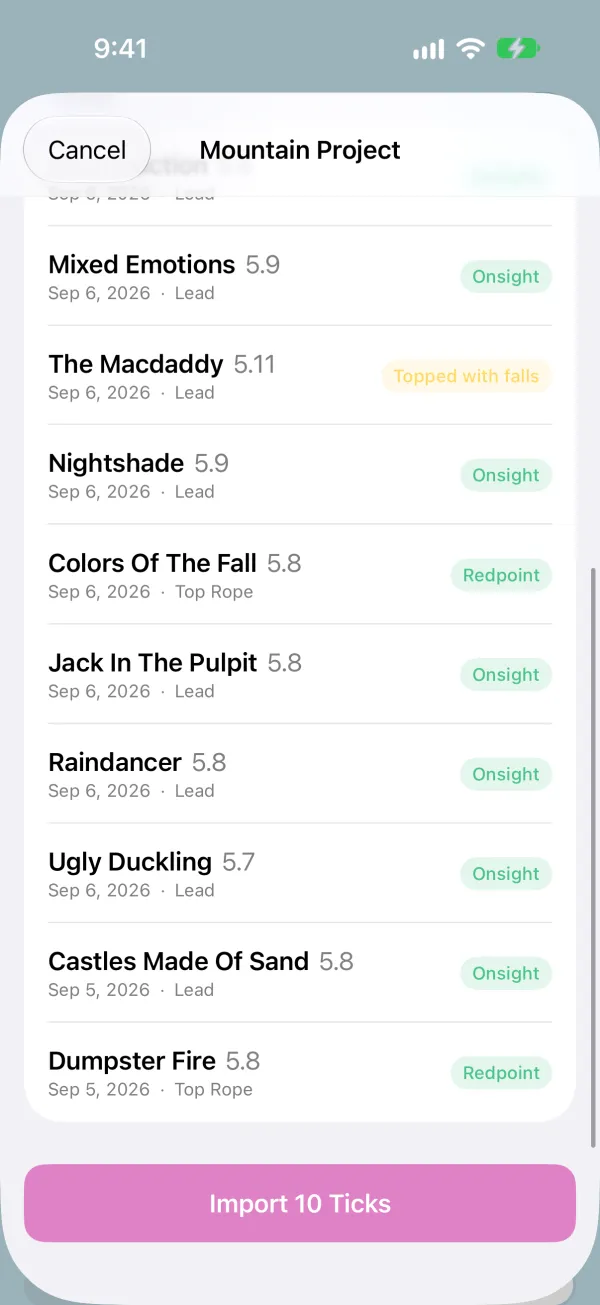
Each tick is listed with its route, grade, and send type, like Onsight or Fell/Hung. When it looks right, tap Import. Each day at a crag becomes a session; Mountain Project has no times, so new sessions show the date only.
5
New Ticks Sync Automatically
Your profile link is saved, and with Sync Automatically on, Big Sendies checks Mountain Project once a day when you open the app and adds any new ticks. Tap Sync Now to check right away. Ticks you've already imported are skipped, and if you logged a day in Big Sendies yourself, its ticks join that session, skipping routes you'd already logged there. Edits and deletions on Mountain Project don't sync back.
6
Deleted Climbs Stay Deleted
If you delete an imported climb, the next import won't bring it back. Changed your mind? Settings → Mountain Project shows Restore Deleted Ticks; tap it and they come back on your next import.
7
Private Profile? Use a File
If your ticks aren't public, export them instead: on mountainproject.com go to Profile → Ticks → Export CSV, then in Settings → Mountain Project tap Open a ticks.csv File and choose the download. You get the same preview.