Reading Your Dashboard
Your Dashboard turns every logged climb into stats, charts, and achievements. Here's what each part tells you.
Step by Step
1
Your Stats at a Glance
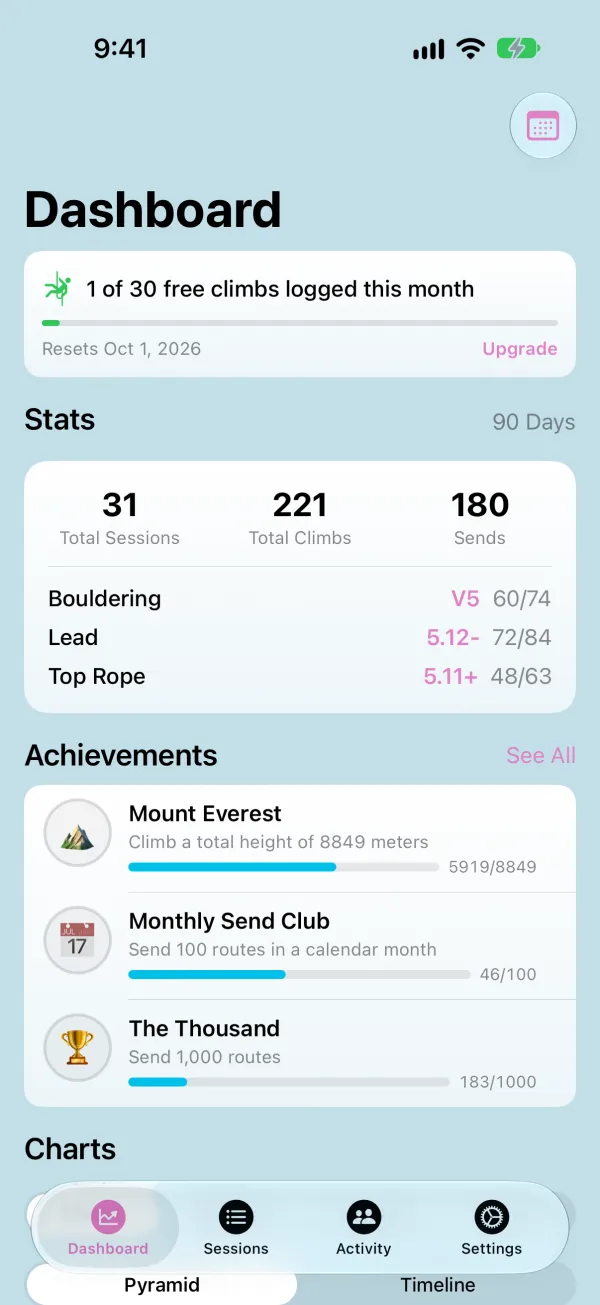
The Dashboard opens with your sessions, climbs, and sends for the selected time frame, plus your hardest send and send rate for each climb type. Your most recent achievements are right below.
2
Change the Time Frame
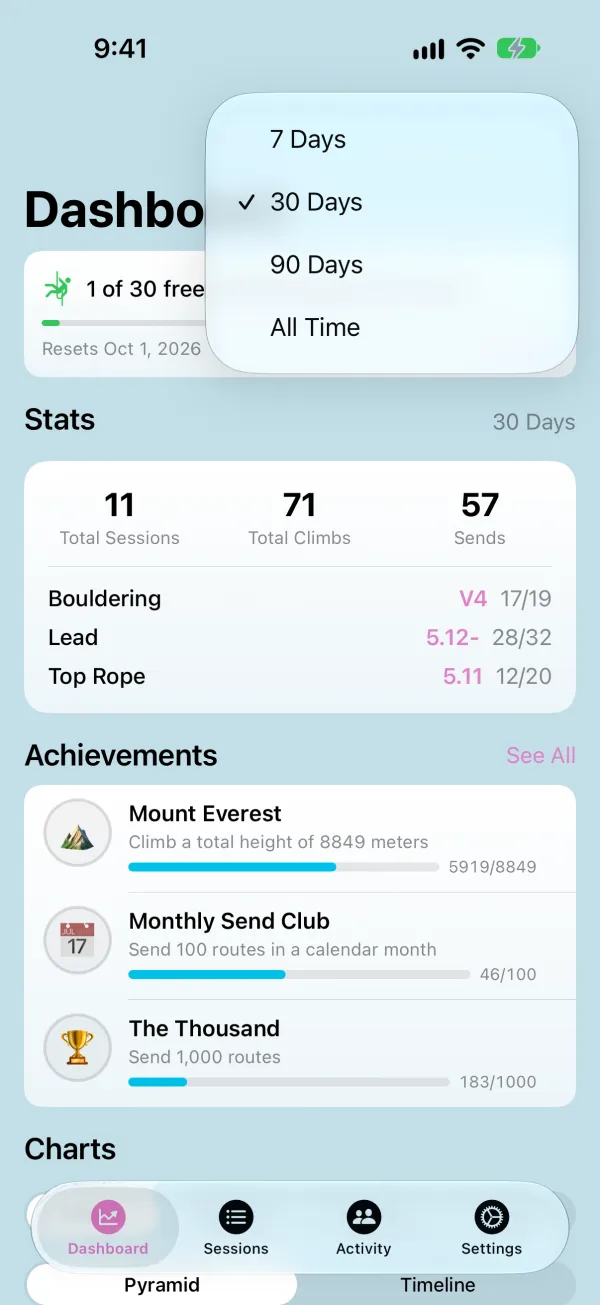
Tap the calendar button to switch between 7 Days, 30 Days, 90 Days, and All Time. Stats and charts update together; achievements always count your whole history.
3
Read Your Grade Pyramid
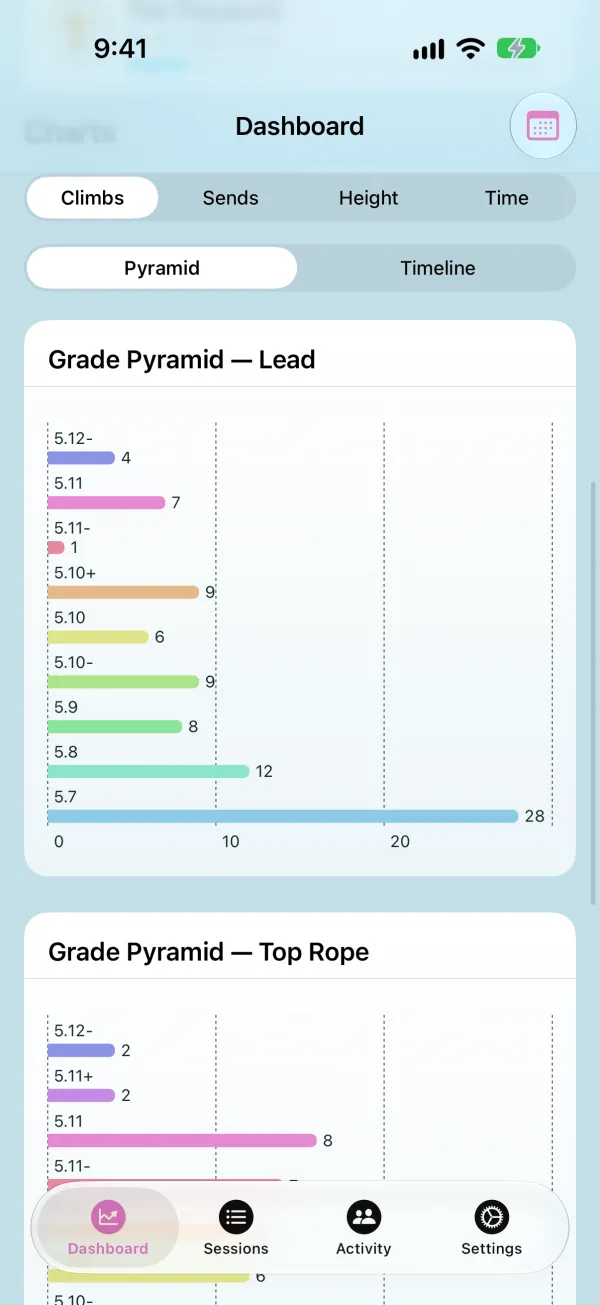
Under Charts, the Pyramid view shows how many climbs you've logged at each grade, with a chart for each climb type. A wide base that narrows toward your hardest grades is a healthy pyramid. Switch between Climbs, Sends, Height, and Time to change what the chart measures.
4
See Progress Over Time
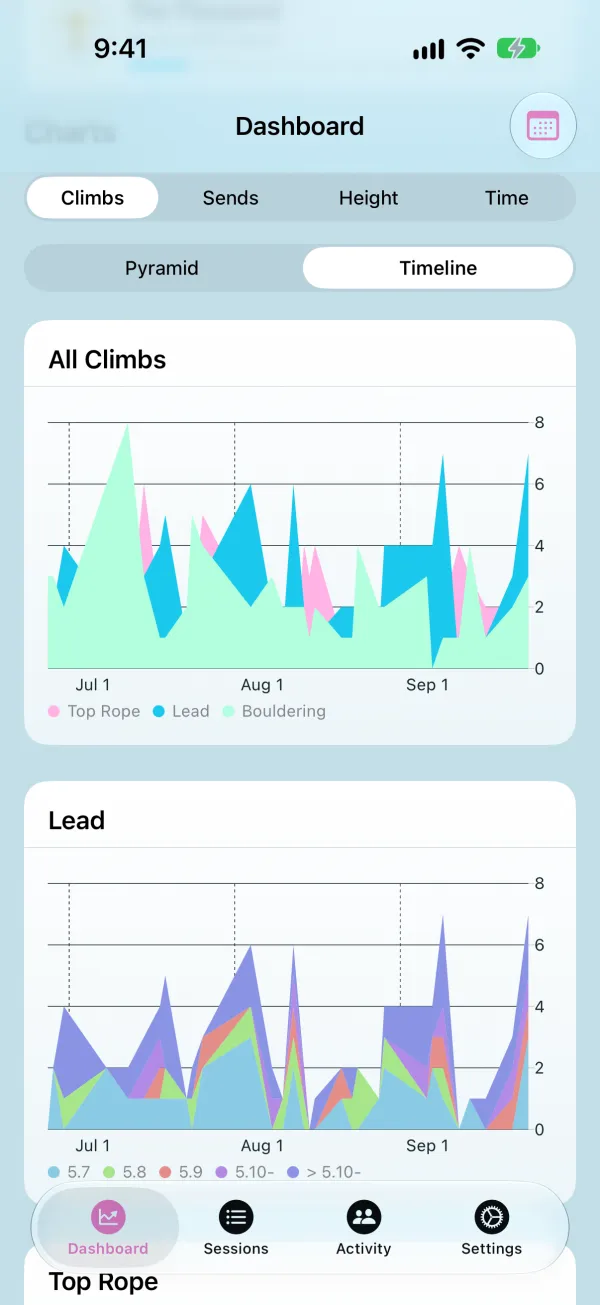
Switch to Timeline to see the same measure across the time frame, so you can spot your big weeks and see how your climbing is trending.
5
Chase Achievements
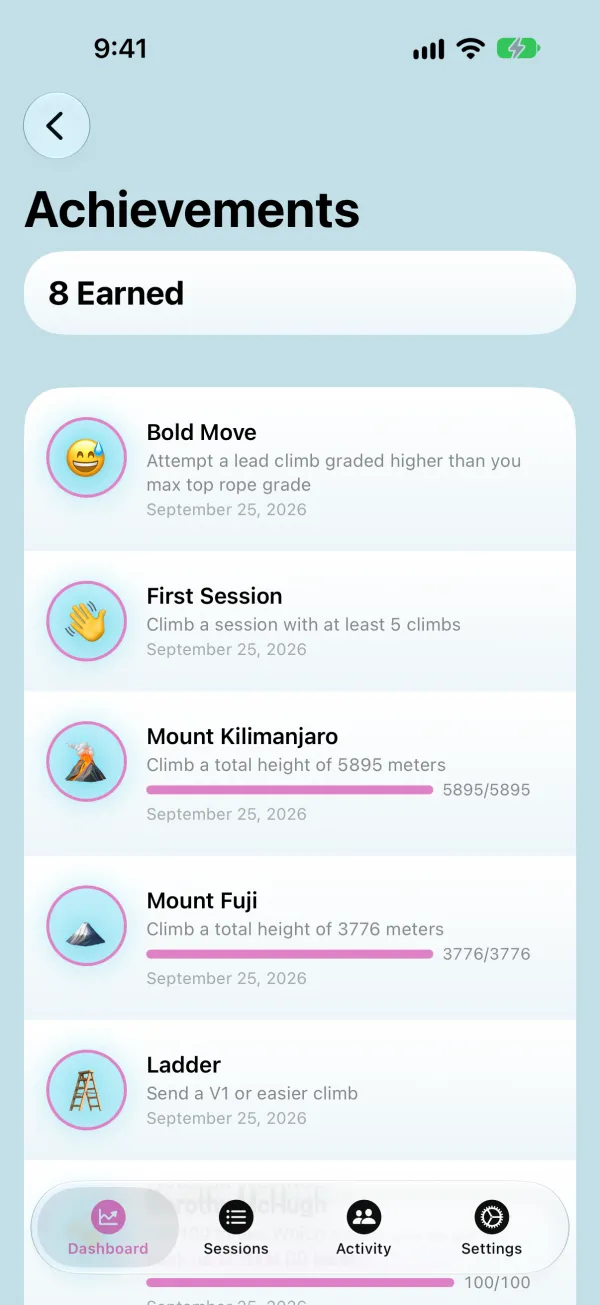
Tap See All next to Achievements for every milestone — from your first send to climbing the height of Everest — with progress bars for the ones you're still working toward.