Adding Routes to Your Climbs
Link a climb to the exact route you were on — pick one your gym has already added, or create it by scanning the route card.
Step by Step
1
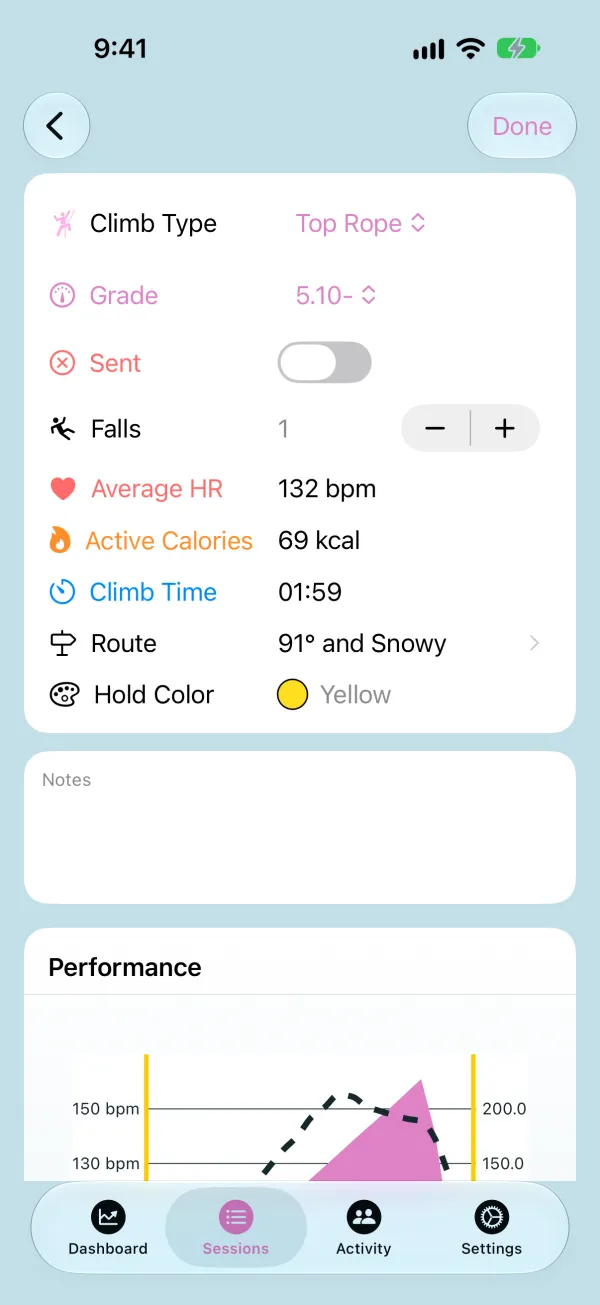
Set the Session's Location
Routes belong to a location. Open the session from the Sessions tab and tap Select Location at the top to choose your gym. If you picked the gym when you started the session, you're already set.
2
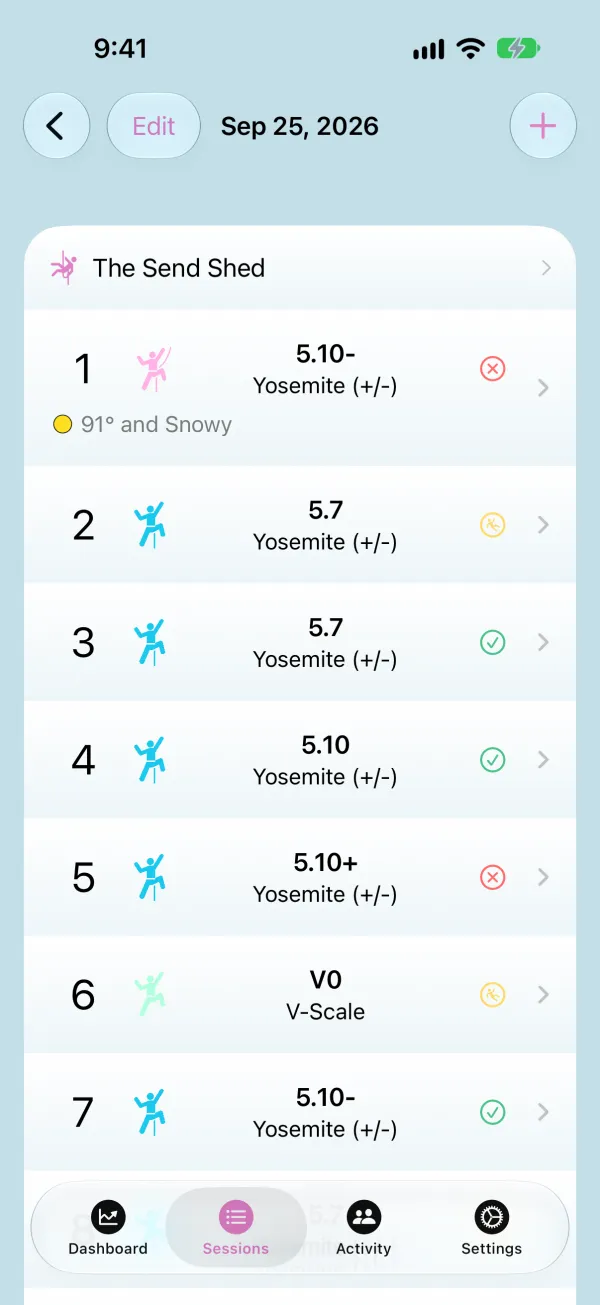
Edit the Climb
Tap the climb you want to update, then tap Edit. The Route row becomes active.
3
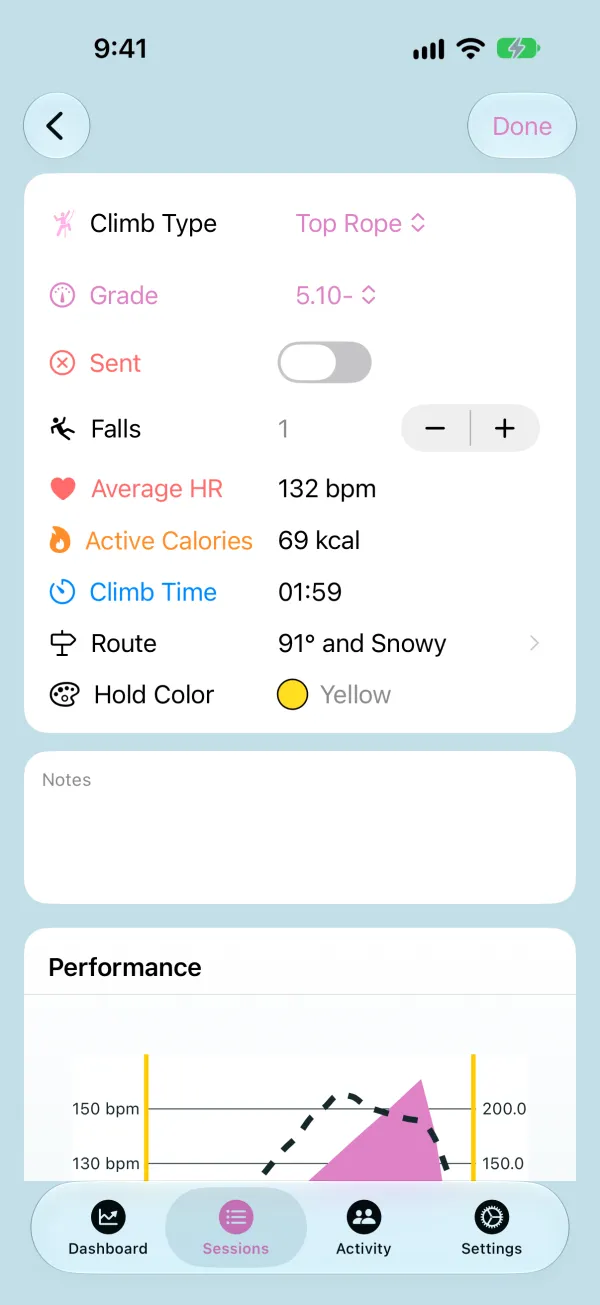
Pick the Route
Tap Route to see the gym's routes at that climb's grade, or search by name. Found it? Tap it and you're done.
4
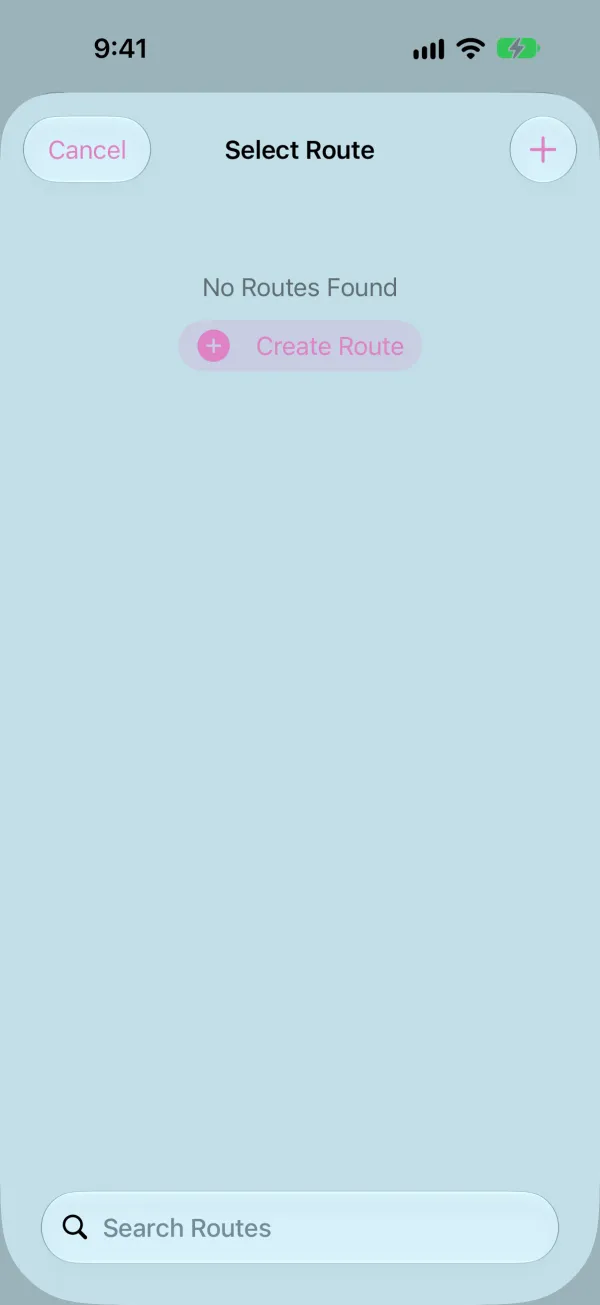
Or Scan the Route Card
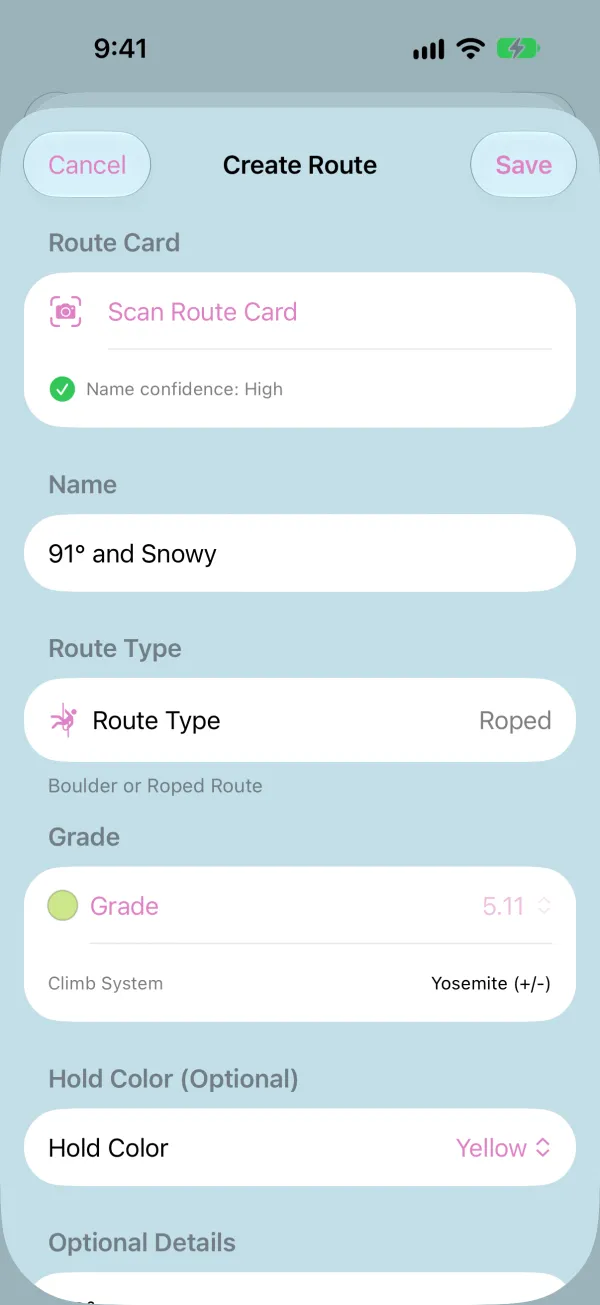
Route not listed yet? Tap + (or Create Route), then Scan Route Card. Take a photo of the card — or choose one from your library — and Big Sendies reads the route name, grade, setter, set date, and hold color for you. Check the details, and leave Share Route on so other climbers at your gym can find it.
5
Save and Finish
Tap Save to add the route and attach it to your climb, then tap Done. The climb now shows the route and its hold color, and it counts toward that route in your Routes logbook.