Grade Systems & Custom Grades
Pick the grade systems you climb in, or recreate your gym's own scale. We'll build the Peak Experiences bouldering scale as an example.
Step by Step
1
Choose Your Grade Systems
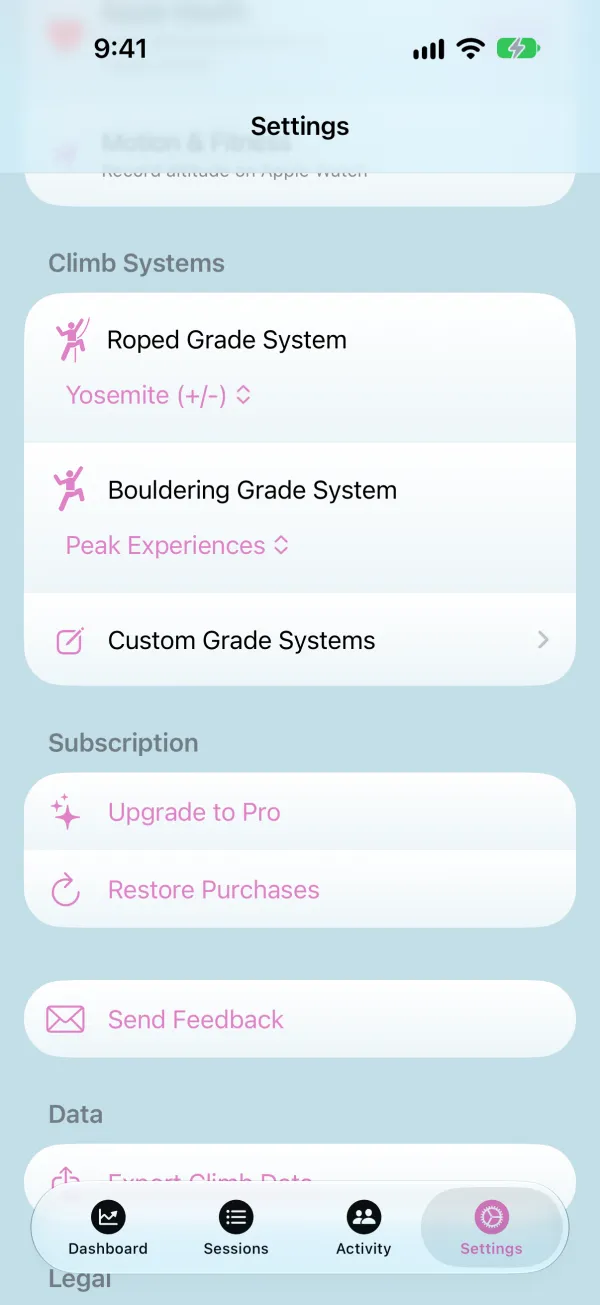
Open the Settings tab and scroll to Climb Systems. Set a Roped Grade System (Yosemite, French, UIAA, and more) and a Bouldering Grade System (V-Scale or Font). The grade picker uses these whenever you log a climb.
2
Create a Custom System
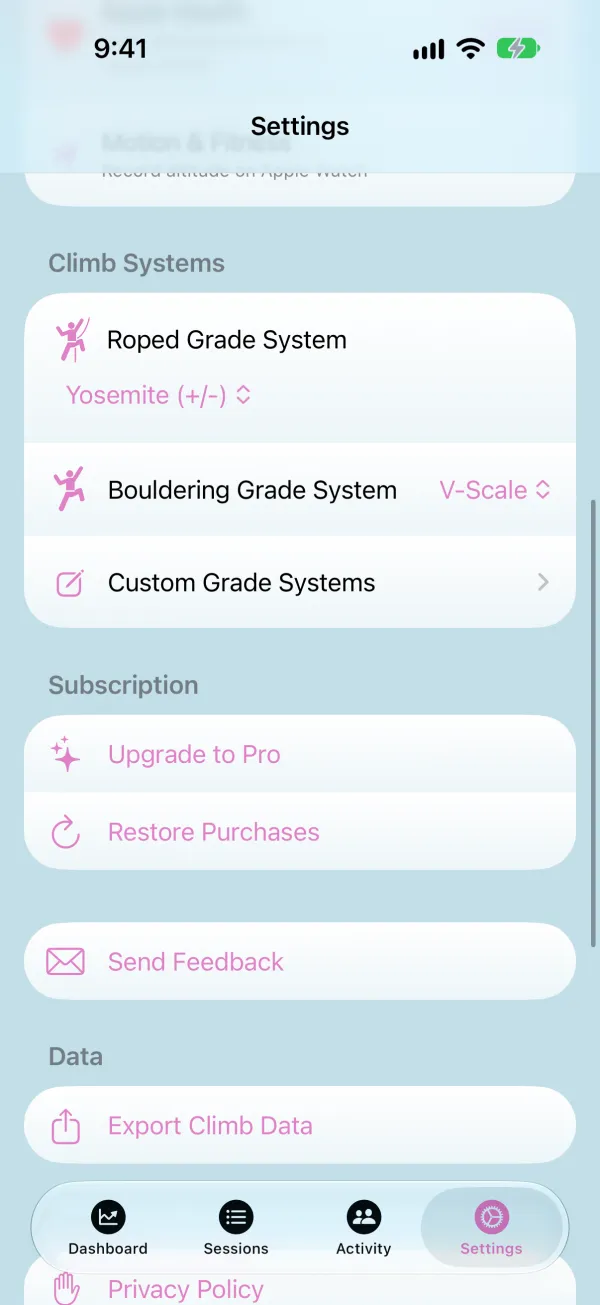
Tap Custom Grade Systems, then +. Name the system after your gym — here, Peak Experiences — and tap Add.
3
Add Each Grade
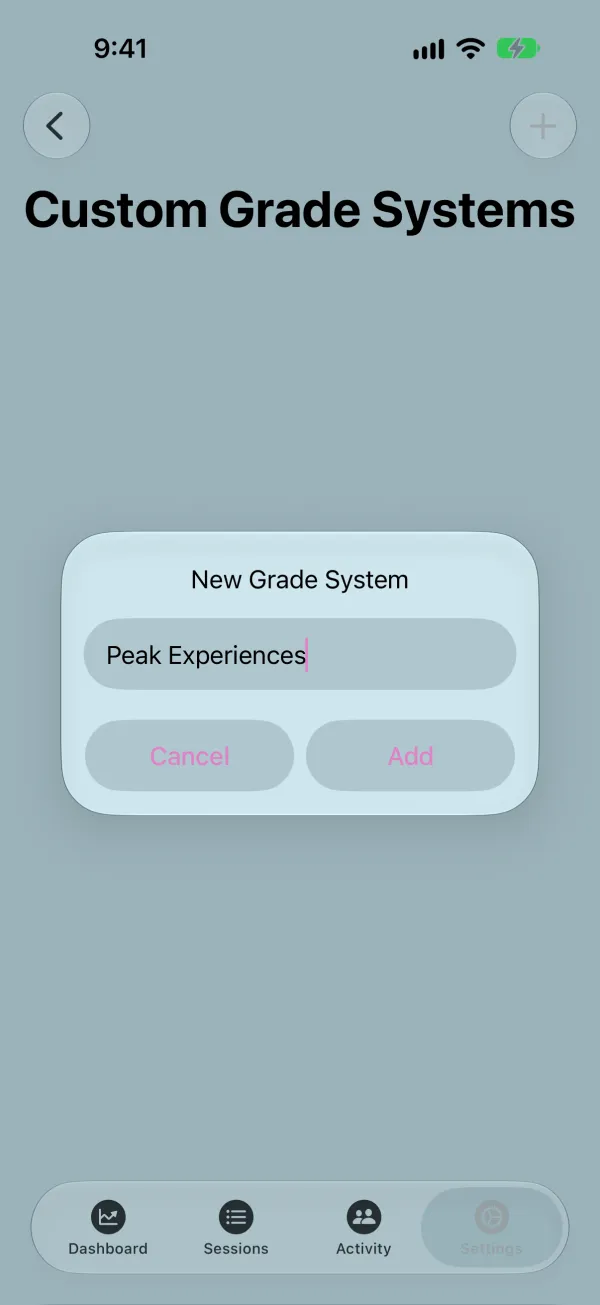
Peak tags boulders by color, and each color covers a range of V-grades that overlaps its neighbors. For each tag, enter its name, pick its color, and set the Anchor Grade System to V-Scale with a Start and End Anchor — Yellow runs from V2 to V4. Anchors keep your stats, pyramids, and achievements accurate. Tap Save, then + for the next grade.
4
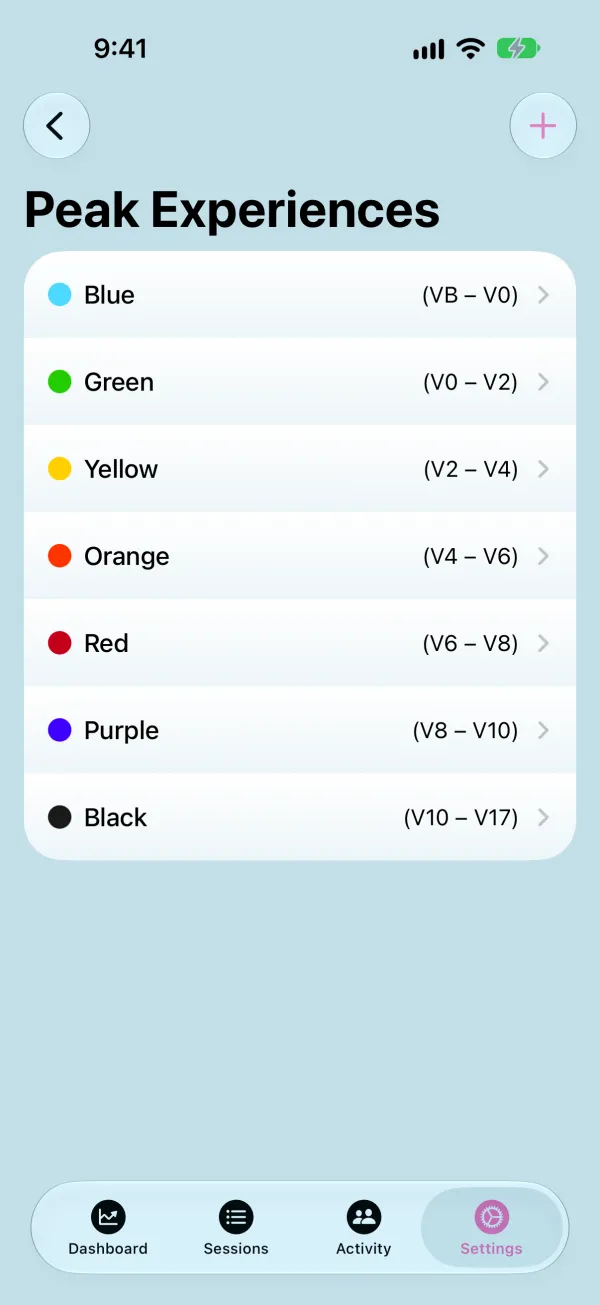
Review Your Scale
The full Peak scale: Blue (VB–V0), Green (V0–V2), Yellow (V2–V4), Orange (V4–V6), Red (V6–V8), Purple (V8–V10), and Black (V10+). Tap a grade to edit it, or swipe left to delete it.
5
Make It Your Default
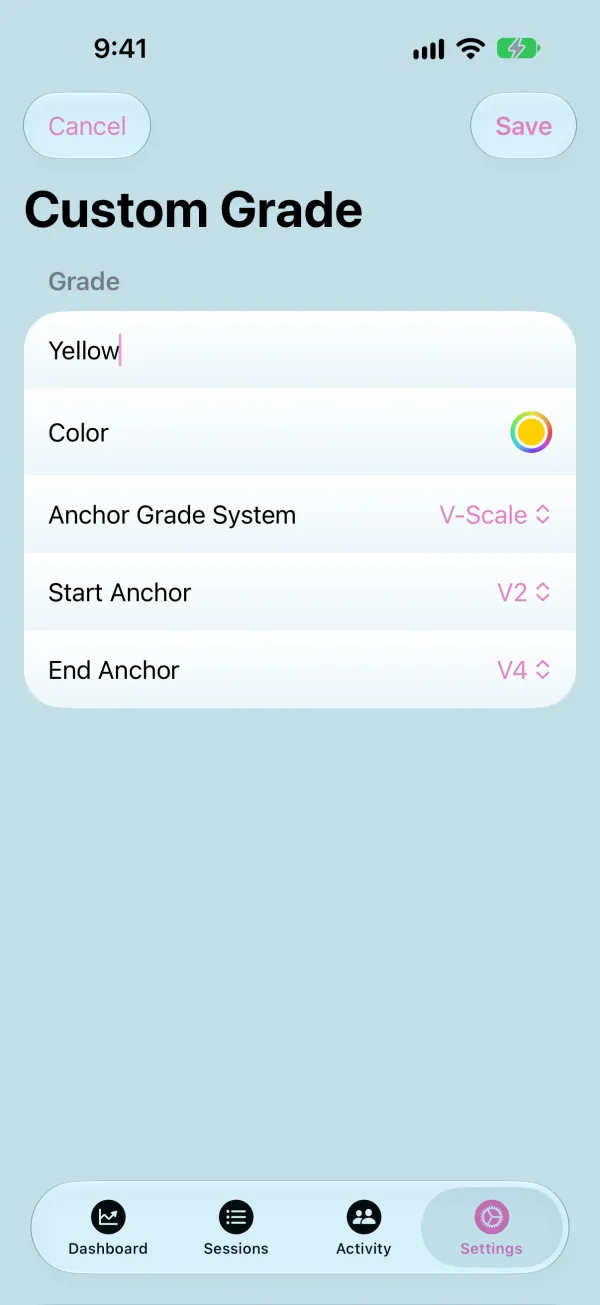
Back in Settings → Climb Systems, choose Peak Experiences as your Bouldering Grade System. The grade picker now shows Blue through Black whenever you log a boulder.