Your First Session: A Complete Walkthrough
Start a live session, time each climb, and save it all with one tap — on your iPhone or Apple Watch.
Step by Step
1
Start an Active Session
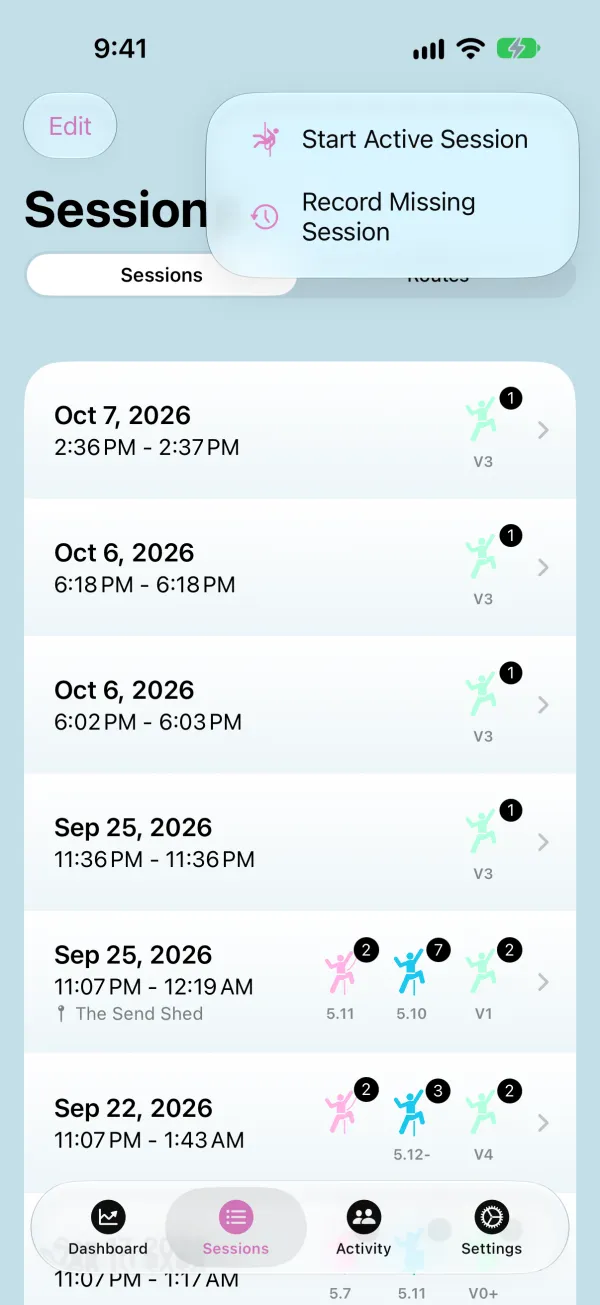
Open the Sessions tab, tap +, and choose Start Active Session. Forgot to track a session? Record Missing Session lets you add one after the fact.
2
Pick Your Gym
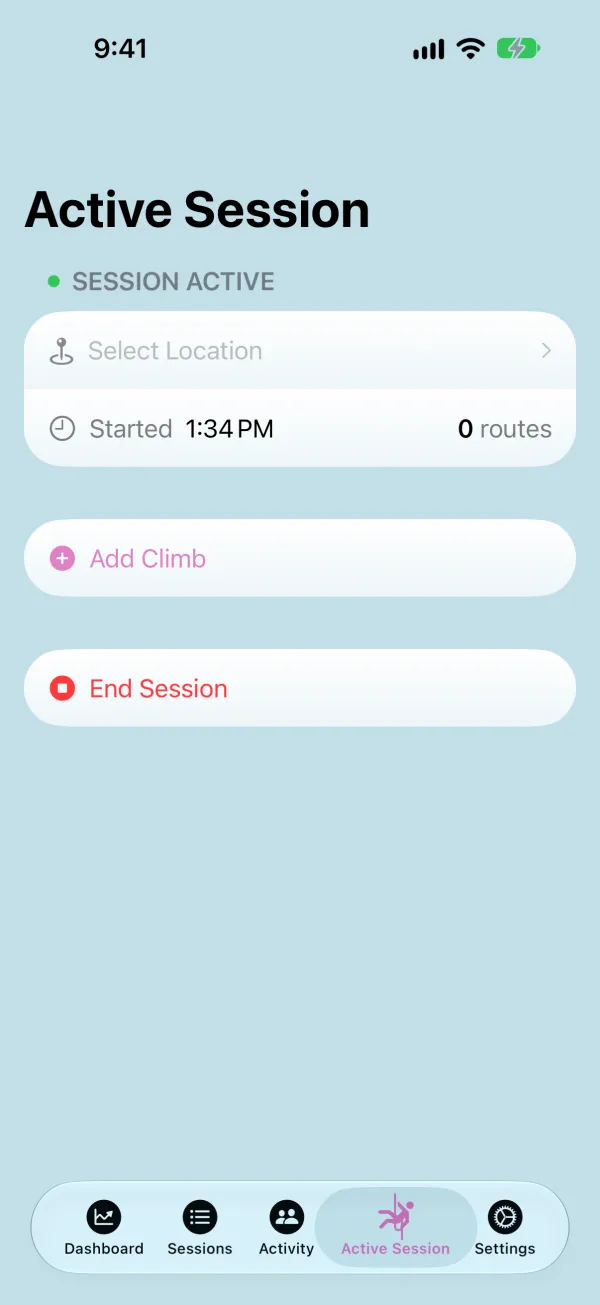
Your session is live. Tap Select Location at the top to choose your gym or crag — this lets you pick from its routes when you add a climb. You can skip it and add a location later.
3
Set Up the Climb
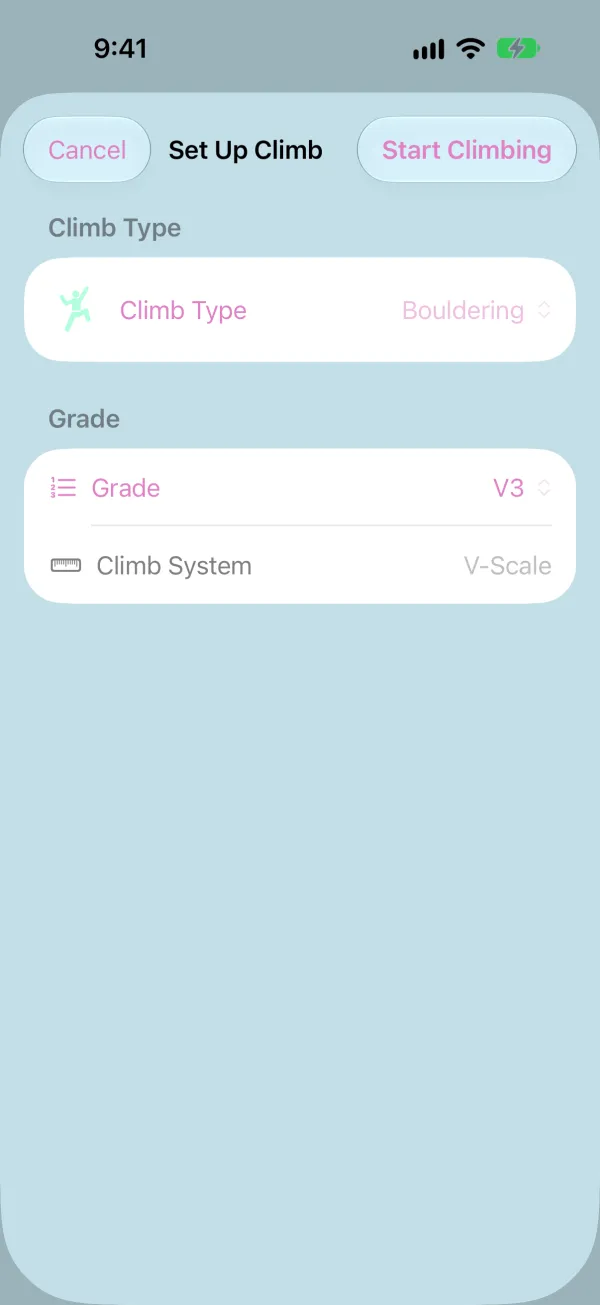
Tap Add Climb. Choose the climb type and grade — the grade list follows your default grade system for that type. If you've picked a location, you can also choose the route. Then tap Start Climbing.
4
Climb!
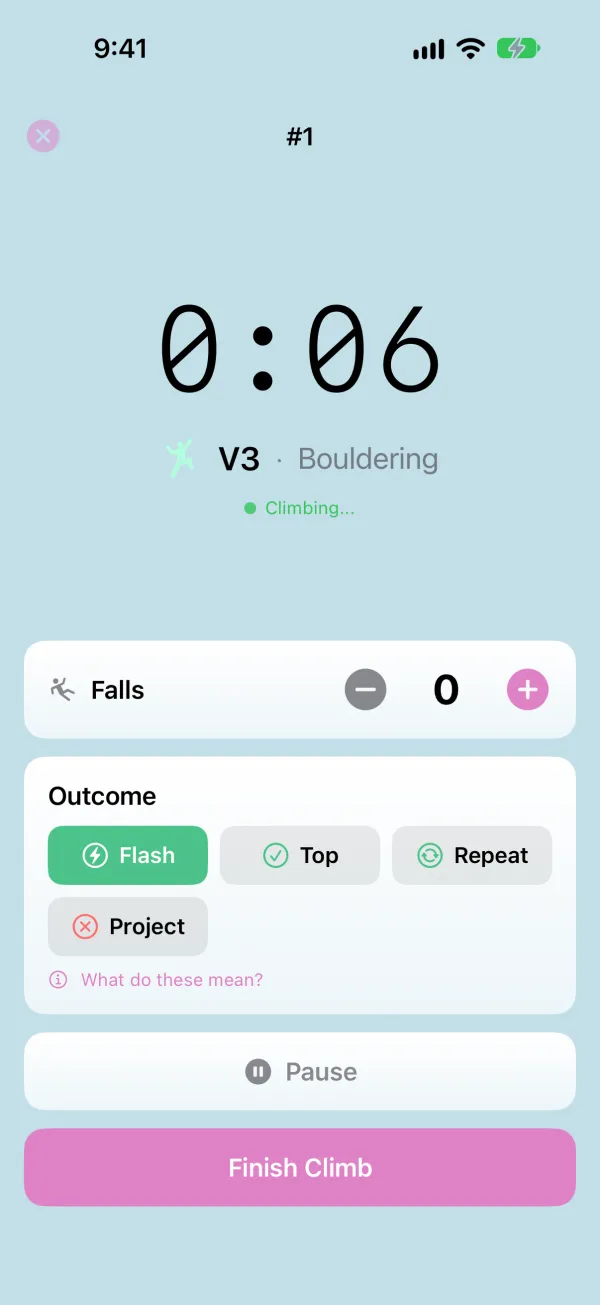
The timer runs while you climb. Tap + to count falls, and use Pause if you need a rest mid-route. Under Outcome, pick how it went: Onsight, Flash, Redpoint, Repeat, Topped with Falls, or Attempt (Flash, Top, Repeat, or Project for boulders). Once you've logged a fall, only the outcomes that still fit are offered. Not sure which one fits? Tap What do these mean? under the choices, or see Send Types Explained below.
5
Finish and Repeat
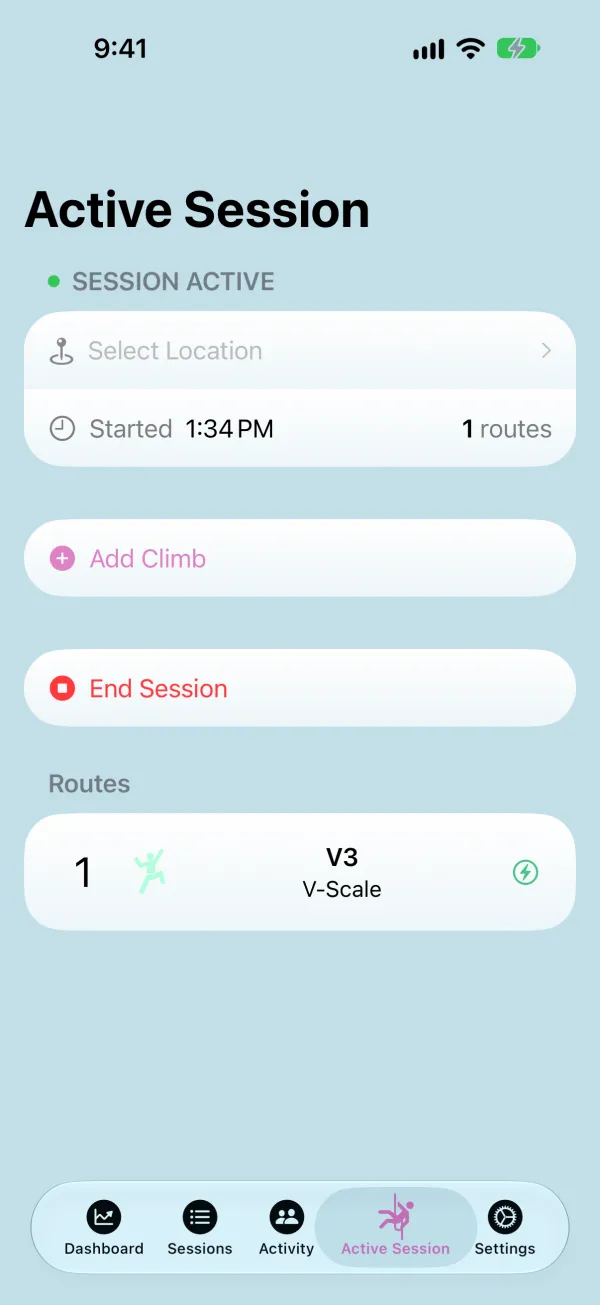
Tap Finish Climb. The climb is added to your session's list, and you're ready for the next one.
6
End the Session
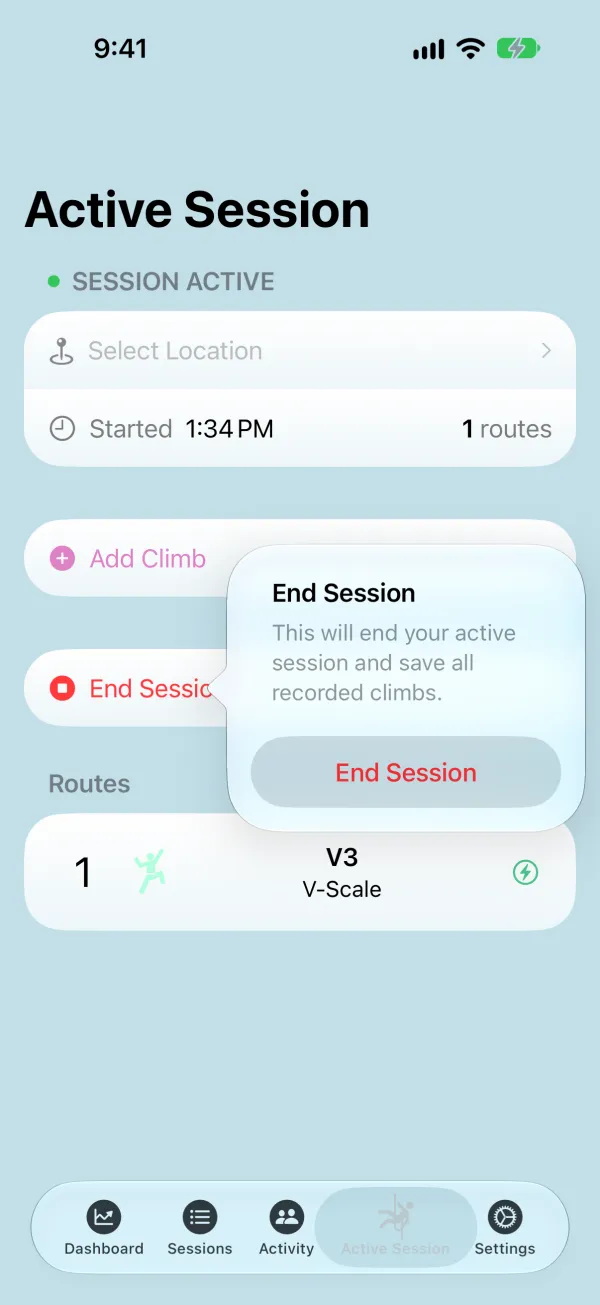
When you're done for the day, tap End Session and confirm. The session is saved to your Sessions tab, counts toward your stats and achievements, and is saved to Apple Health as a climbing workout.
7
Review a Climb
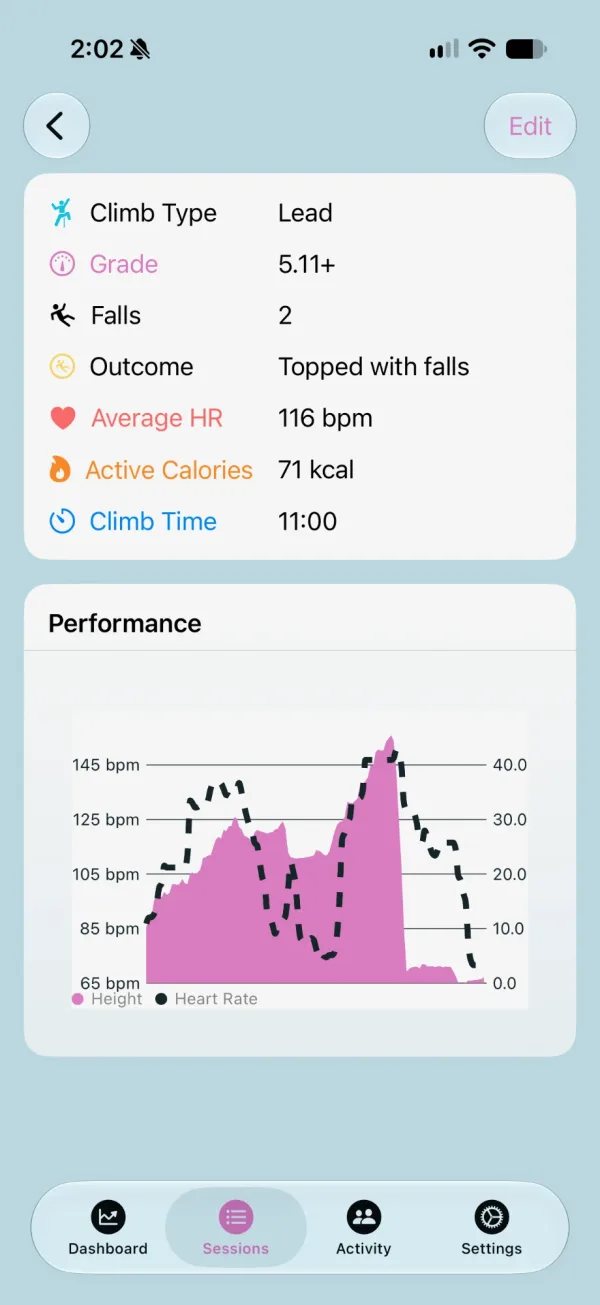
Open the session from the Sessions tab and tap any climb to see its grade, falls, outcome, average heart rate, calories, and climb time. The Performance chart plots your height and heart rate over the route. Tap Edit to fix anything you logged wrong.
8
Prefer Your Wrist?
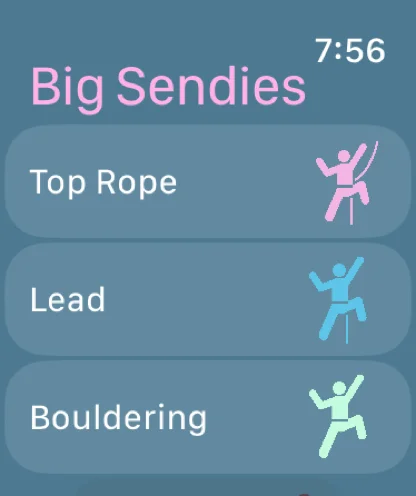
Open Big Sendies on your Apple Watch, pick the climb type and grade, and tap Start Route. The watch tracks time, height, and heart rate, and when you tap End Route you pick the outcome right there, without touching your phone. When you end the session, it syncs to your iPhone.
Send Types Explained
| Ropes | Boulders | What it means | Counts? |
|---|---|---|---|
| Onsight | — | Sent clean on your first try, with no beta: you didn't watch anyone climb it or get tips first. | Send |
| Flash | Flash | Sent clean on your first try, with beta: you watched someone climb it or got tips first. | Send |
| Redpoint | Top | Sent clean after earlier attempts. | Send |
| Repeat | Repeat | Sent clean again, on a route you've already sent. | Send |
| Topped with falls | — | Reached the top, but fell or rested on the rope along the way. | Not a send |
| Attempt | Project | Didn't reach the top. | Not a send |
Only clean sends count toward your send totals and grade pyramid, so a climb where you fell or rested counts as Topped with falls. Bouldering skips Onsight and Topped with falls; any falls on a problem rule out Flash.